
Instagram Message Desktop Is a First-Class Feature — But Only If You Use the Right Interface for Your Role
Table of Contents
Intro
For years, people searching “Instagram Message Desktop” hit the same wall: half-working tricks, outdated advice, or vague instructions that boil down to “just use your phone.” That’s frustrating if you’re replying to long messages, handling customer queries, or managing Instagram as part of your job.
Clear answer upfront:Yes, you can send and manage Instagram messages on desktop. The best method depends on whether you’re a personal user, creator, or business — and Instagram now officially supports all three use cases, just not in one single place.
The bigger problem is not whether you can message on Instagram from a desktop — you absolutely can. The real problem is choosing the wrong desktop interface for what you’re trying to do, which leads to missing features, wasted time, or even account risk.
Why “Instagram Message Desktop” Is No Longer a Hack
Instagram used to be mobile-first by necessity. Messaging on desktop felt like a workaround because, frankly, it was.
That has changed.
Meta has quietly repositioned Instagram DMs as part of its broader messaging ecosystem, alongside Facebook Messenger and WhatsApp. This shift is visible in:
-
the full DM inbox on Instagram.com,
-
the unified inbox inside Meta Business Suite,
-
and official API access for approved business tools.
The implication: desktop messaging is no longer an afterthought. It’s designed for productivity, moderation, and customer communication — not just casual chat.
This is why advice written even 1–2 years ago often feels incomplete today.
What People Really Mean When They Search “Instagram Message Desktop”
Behind this keyword are three different user intents:
-
Beginners
“Can I send Instagram DMs from my laptop instead of my phone?” -
Creators & freelancers
“How do I manage lots of messages without typing on mobile all day?” -
Businesses & teams
“How do we handle Instagram messages professionally and safely on desktop?”
Most top pages answer only the first question. This guide answers all three — and shows where the answers diverge.
All Official Ways to Use Instagram Messages on Desktop
Instagram.com (Best for Personal & Casual Use)
This is the simplest and most overlooked option.
How it works
-
Log in at Instagram.com
-
Click the Messages (DM) icon
-
Send, receive, and reply just like the mobile app
What you can do
-
Send and receive DMs
-
Reply to stories
-
React with emojis
-
Share posts and reels
-
Type long messages comfortably
What you can’t
-
Send voice messages
-
Make video or voice calls
Best for
-
Beginners
-
Personal accounts
-
Occasional desktop use
Why this matters:
For most users, Instagram.com alone already solves the problem. Many guides overcomplicate this.
Meta Business Suite (The Power Option Most Guides Ignore)
If you use Instagram professionally, this is where desktop messaging actually shines.
Meta Business Suite is Meta’s official management platform for Facebook and Instagram. It includes a professional inbox designed for scale.
Key capabilities
-
Unified inbox for Instagram and Facebook
-
Saved replies for FAQs
-
Message labels and filtering
-
Team access with role permissions
-
Official API-backed infrastructure
Best for
-
Business accounts
-
Creators with high DM volume
-
Agencies and social media managers
-
Customer support teams
Important limitation
-
Requires a Creator or Business account
Strategic insight:
Meta Business Suite is not “extra.” It’s Meta’s preferred future for Instagram messaging at scale. This aligns with guidance from Meta itself and analysis commonly echoed by platforms like Social Media Examiner and Hootsuite.
Desktop Apps (Windows & macOS: Reality Check)
Windows
-
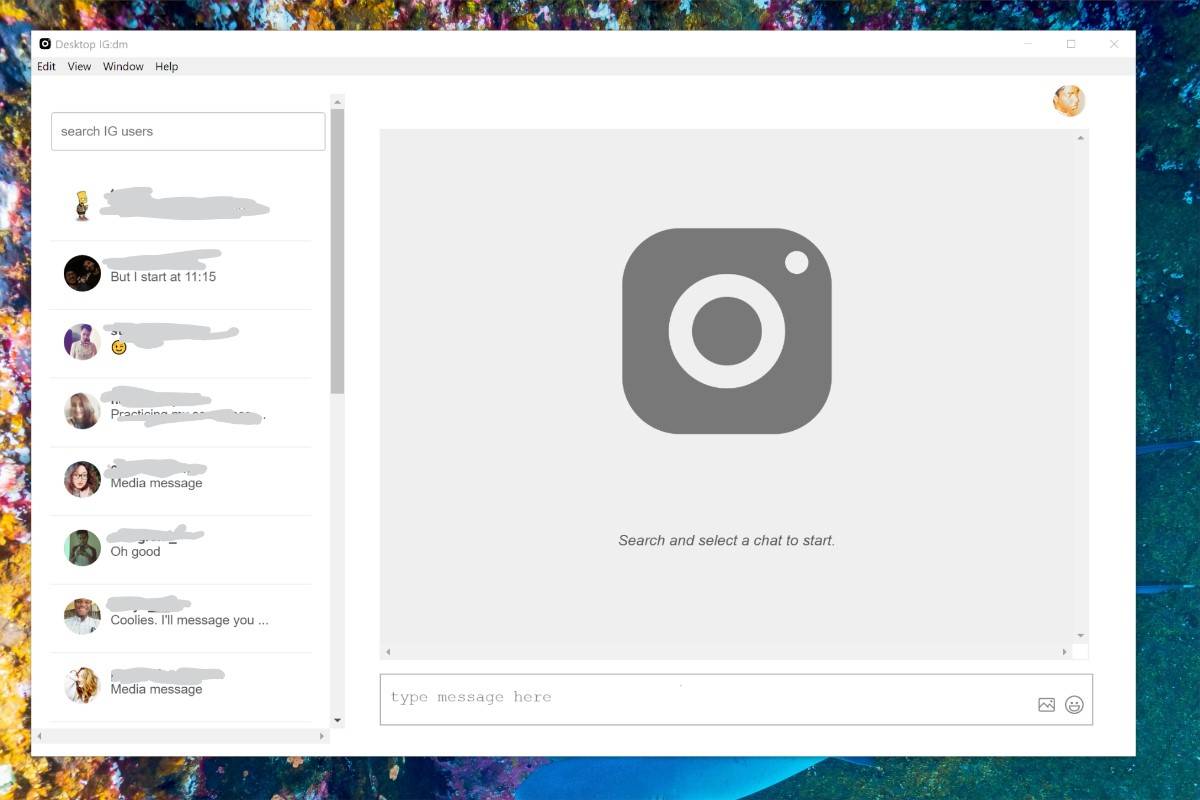
An Instagram app exists via Microsoft Store
-
Feature parity varies by update
-
Often behind the web version
macOS
-
No native Instagram desktop app
-
Browser access is the recommended approach
Bottom line:
Desktop apps exist, but Meta clearly prioritizes web-based experiences. Treat native apps as optional, not essential.
Desktop vs Mobile Instagram Messaging: Real Trade-Offs
| Task | Desktop | Mobile |
|---|---|---|
| Long replies | Better | Slower |
| Customer support | Better | Limited |
| Voice messages | Not supported | Supported |
| On-the-go replies | Poor | Best |
| Multi-tasking | Strong | Weak |
Practical rule:
Use desktop for work and volume. Use mobile for real-time, personal interaction.
Third-Party Instagram DM Tools: Where They Help — and Where They Hurt
This is where many articles either fear-monger or overpromise.
When third-party tools make sense
-
Inbox aggregation via official Meta APIs
-
CRM-style message tracking
-
Large teams with compliance needs
When they become dangerous
-
Automated cold DMs
-
Scraping followers or emails
-
Tools that ask for your Instagram password
-
“Growth hacks” that bypass Meta’s systems
Account risk is real.
Instagram’s enforcement systems are increasingly behavior-based, not just tool-based. Misuse triggers action limits or bans — something consistently warned about by Meta documentation and platforms like Sprout Social.
Rule of thumb:
If a tool replaces Meta’s inbox instead of integrating with it, be cautious.
Common Problems When Using Instagram Messages on Desktop
Messages not showing
-
Refresh the page
-
Log out and back in
-
Clear browser cache
-
Check if you’re logged into the correct account type
Can’t send messages
-
Temporary action limits
-
New login location or device
-
Recent policy warnings
These issues are usually account-level, not device-level.
Best Instagram Desktop Messaging Setup by Use Case
| Use Case | Recommended Method |
|---|---|
| Personal user | Instagram.com |
| Beginner creator | Instagram.com → Business Suite |
| Established creator | Meta Business Suite |
| Small business | Meta Business Suite |
| Agency/team | Business Suite + approved tools |
Who This Guide Is (and Is Not) For
This guide is for
-
Users who want official, safe solutions
-
Businesses and creators planning long-term use
-
Anyone tired of workaround advice
This guide is not for
-
Mass DM automation seekers
-
Black-hat growth tactics
-
One-click “hack” expectations
Final Takeaway: Use Instagram Desktop Messaging the Way Meta Designed It
Instagram messaging on desktop is no longer limited — it’s segmented by intent.
-
Casual users get simplicity via Instagram.com.
-
Professionals get structure via Meta Business Suite.
-
Power users get scale through approved integrations.
The mistake isn’t using desktop.
The mistake is using the wrong desktop interface for your role.
If you align your setup with how Meta actually operates today, Instagram desktop messaging becomes a productivity advantage — not a compromise.