

The errordomain=nscocoaerrordomain… shortcut error message: could not find the specified shortcut.& errorcode=4 error generally means an Apple device or app cannot locate a shortcut or related resource it expected to access. Error code 4 is associated with a file-not-found condition within Apple’s Cocoa error framework.
Seeing errordomain=nscocoaerrordomain… shortcut error can look much more serious than it actually is. On an iPhone, iPad, or Mac, the message usually indicates that Shortcuts or another Apple-related process is trying to access a shortcut or resource that is no longer available where it expects it to be.
The useful part of the message is “could not find the specified shortcut” and Error Code 4. Apple’s documentation identifies NSCocoaErrorDomain as a Cocoa error domain, while file-related codes cover filesystem and file I/O failures.
Table of Contents
What Does the errordomain=nscocoaerrordomain… shortcut error Mean?
In simple terms, the system has a reference to something that it cannot currently locate.
The shortcut might have been:
- Deleted accidentally
- Renamed
- Changed or recreated
- Not synchronised correctly
- Referenced by another automation
- Affected by an app or system change
This does not automatically mean that your iPhone or Mac is damaged. It is better to treat the message as a missing-resource problem first.
Breaking down the error
| Part of message | Meaning |
|---|---|
errordomain=nscocoaerrordomain |
Identifies the Cocoa error domain |
errormessage |
Describes the immediate problem |
could not find the specified shortcut |
The referenced shortcut cannot be located |
errorcode=4 |
Indicates a file/resource-not-found type condition |
Apple’s documentation notes that Cocoa error codes beginning with NSFile cover file-system or file-I/O errors.
Why Does the Shortcut Error Appear?
Several situations can produce the same message.
1. The shortcut was deleted
A shortcut may have been removed while another automation, widget, Home Screen item or application still expects it to exist.
2. The shortcut was renamed
Renaming is normally supported in Shortcuts, but another component that relies on an older reference may not immediately resolve the renamed item. Apple provides built-in tools for renaming shortcuts on Mac.
3. iCloud synchronisation has not completed
Shortcuts can synchronise between Apple devices through iCloud. Apple states that, with iCloud Sync enabled, changes to a shortcut can be reflected across supported devices.
4. An automation points to an unavailable shortcut
An automation can continue to exist even when something it depends on is no longer available. This is particularly worth checking when the error appears after changing or deleting shortcuts.
5. A shortcut depends on another app
Some shortcut actions use other apps and may require permissions. Apple notes that actions involving other apps can require access permissions.
How to Fix errordomain=nscocoaerrordomain Shortcut Error
The safest approach is to work from the simplest checks to more involved troubleshooting.
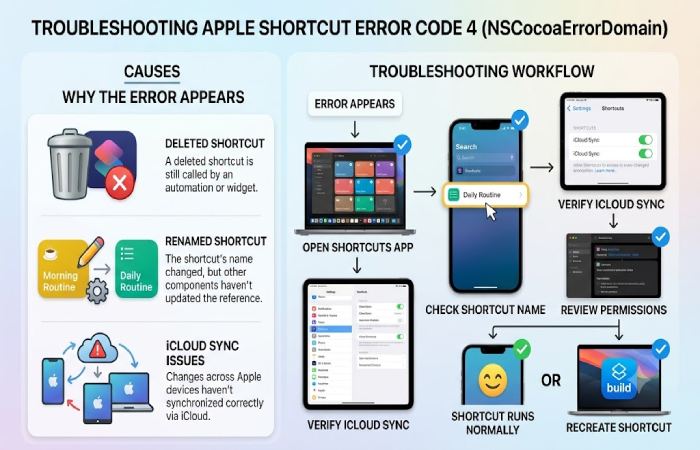
Troubleshooting workflow
Error appears → Open Shortcuts → Find the shortcut → Check name/availability → Check iCloud Sync → Review permissions → Restart device → Recreate the shortcut if necessary
This avoids unnecessarily deleting working shortcuts or changing system settings.
Step 1: Open the Shortcuts app
Open Shortcuts and look for the shortcut named in the action, automation or Home Screen item that produces the error.
Apple’s Shortcuts app lists shortcuts you have created or added, and they can be run directly from the collection.
If the shortcut is missing, the error makes more sense: something is looking for an item that is not currently present.
Step 2: Check whether it was renamed
Search your shortcut collection for the task rather than relying only on its previous name.
For example, a shortcut previously called “Morning Routine” might now be called “Daily Routine”.
If you find it, check the automation or entry point that is producing the error and update it where necessary.
Step 3: Check iCloud Sync
On iPhone or iPad, Apple provides an iCloud Sync option in Shortcuts. When enabled, your shortcut collection can stay synchronised between Apple devices.
Check:
Settings → Shortcuts → iCloud Sync
On Mac, Shortcuts also provides iCloud synchronisation through its settings.
If you use multiple Apple devices, make sure they are signed into the same Apple Account before assuming that a missing shortcut has been permanently deleted.
Step 4: Check permissions
A shortcut can require access to information or another application.
Apple explains that Shortcuts can request permission to access required data, and those permissions can be reviewed from the shortcut’s privacy settings.
If the shortcut opens but fails while running an action, inspect its permissions before rebuilding the entire shortcut.
Step 5: Restart the device
If the shortcut exists and synchronization looks correct, restart the iPhone, iPad or Mac.
This is a simple diagnostic step rather than a guaranteed fix. It can help determine whether the problem is temporary.
Step 6: Recreate the shortcut
If the shortcut is genuinely missing or its configuration appears damaged, recreating it may be the cleanest solution.
Before deleting anything, record the important actions and settings. This is particularly important for complex automations.
What to Expect After Troubleshooting
There is no single fix that works for every NSCocoaErrorDomain shortcut error.
| Situation | Likely next action | Expected result |
|---|---|---|
| Shortcut exists | Check reference/name | Shortcut may run normally |
| Shortcut missing | Recreate or restore it | New valid shortcut reference |
| Other device has shortcut | Check iCloud Sync | Collection may become available |
| Permission problem | Review privacy settings | Required access may return |
| Automation is outdated | Edit or recreate automation | Automation points to current shortcut |
| Persistent system issue | Update/restart and investigate further | Requires deeper diagnosis |
The realistic expectation is that simple missing-shortcut cases can often be resolved quickly, while problems involving several automations or third-party apps can take longer to identify.
Is This Shortcut Error Dangerous?
Usually, the error itself is an indication of a failed shortcut or missing resource rather than evidence of malware.
However, users should be careful when importing shortcuts from unknown sources. Apple specifically warns that it cannot verify the authenticity or behaviour of privately shared shortcuts.
For security, only use shortcuts from sources you trust and review what a shortcut does before granting sensitive permissions.
iPhone vs Mac: What Should You Check?
| Device | First checks |
|---|---|
| iPhone | Shortcuts collection, automation, iCloud Sync |
| iPad | Shortcuts collection, automation, iCloud Sync |
| Mac | Shortcuts collection, shortcut name, iCloud Sync |
| Apple Watch | Check whether the underlying shortcut is available on the paired device |
| Multiple Apple devices | Confirm Apple Account and synchronisation settings |
Apple supports running shortcuts across Mac and other Apple devices when iCloud Sync is enabled, although some automation types have different synchronisation behaviour.
Pros and Limitations of the Troubleshooting Approach
Advantages
- Starts with low-risk checks
- Does not require technical knowledge
- Helps identify whether the shortcut actually exists
- Preserves existing shortcuts where possible
- Works for common iPhone, iPad and Mac scenarios
Limitations
- The same error can have different underlying causes
- Third-party apps may introduce additional variables
- Complex automations can be harder to diagnose
- Rebuilding a complicated shortcut may take time
Who Should Use This Guide?
This troubleshooting guide is useful for:
- iPhone users seeing the error while running a shortcut
- iPad users dealing with missing shortcuts
- Mac users experiencing shortcut-reference failures
- People moving shortcuts between Apple devices
- Users troubleshooting automations
- Beginners who want to understand what Error Code 4 means
Advanced developers may need additional diagnostic information, such as application logs and the relevant NSError details. Apple’s developer documentation explains how Cocoa error codes and file-path information are represented.
When Should You Seek More Help?
Consider deeper troubleshooting if:
- The shortcut exists but repeatedly disappears
- Several unrelated shortcuts fail
- iCloud Sync does not behave consistently
- The problem began after a major system change
- A third-party app consistently triggers the error
- Recreating the shortcut does not solve the issue
For developer-facing problems, Apple’s error documentation is a better starting point than relying solely on generic online fixes.
FAQ: errordomain=nscocoaerrordomain… shortcut error
What does errordomain=nscocoaerrordomain mean?
It identifies an error belonging to Apple’s NSCocoaErrorDomain. In the shortcut error discussed here, the message indicates that the system cannot locate the specified shortcut or related resource.
Why does errordomain=nscocoaerrordomain… shortcut error show Error Code 4?
Error Code 4 is associated with a missing-file or missing-resource condition in the Cocoa error framework. The exact context still matters because another application or automation may be responsible for requesting the missing resource.
Can iCloud Sync cause a shortcut error?
A synchronisation problem can make a shortcut unavailable on another Apple device. Apple provides iCloud Sync specifically to keep supported shortcut collections updated across devices.
Should I delete and reinstall the Shortcuts app?
Do not make that your first step. First confirm that the shortcut exists, check its name and automation references, verify synchronisation and review permissions.
Can a renamed shortcut cause the error?
It can contribute to reference problems when another automation or integration expects the previous shortcut. Check related automations and entry points after renaming.
Final Takeaway
The errordomain=nscocoaerrordomain… shortcut error could not find the specified shortcut.&errorcode=4 message is best understood as a shortcut or resource lookup failure. Start by checking whether the shortcut still exists, whether it was renamed, whether iCloud Sync is working and whether the relevant permissions are available.
Most importantly, avoid jumping straight to drastic fixes. Identifying which shortcut is missing and what is trying to call it is usually the most useful first step.